
Surveys
Creating a survey
Build a survey from a template or from scratch.
Step 1: Start a new survey
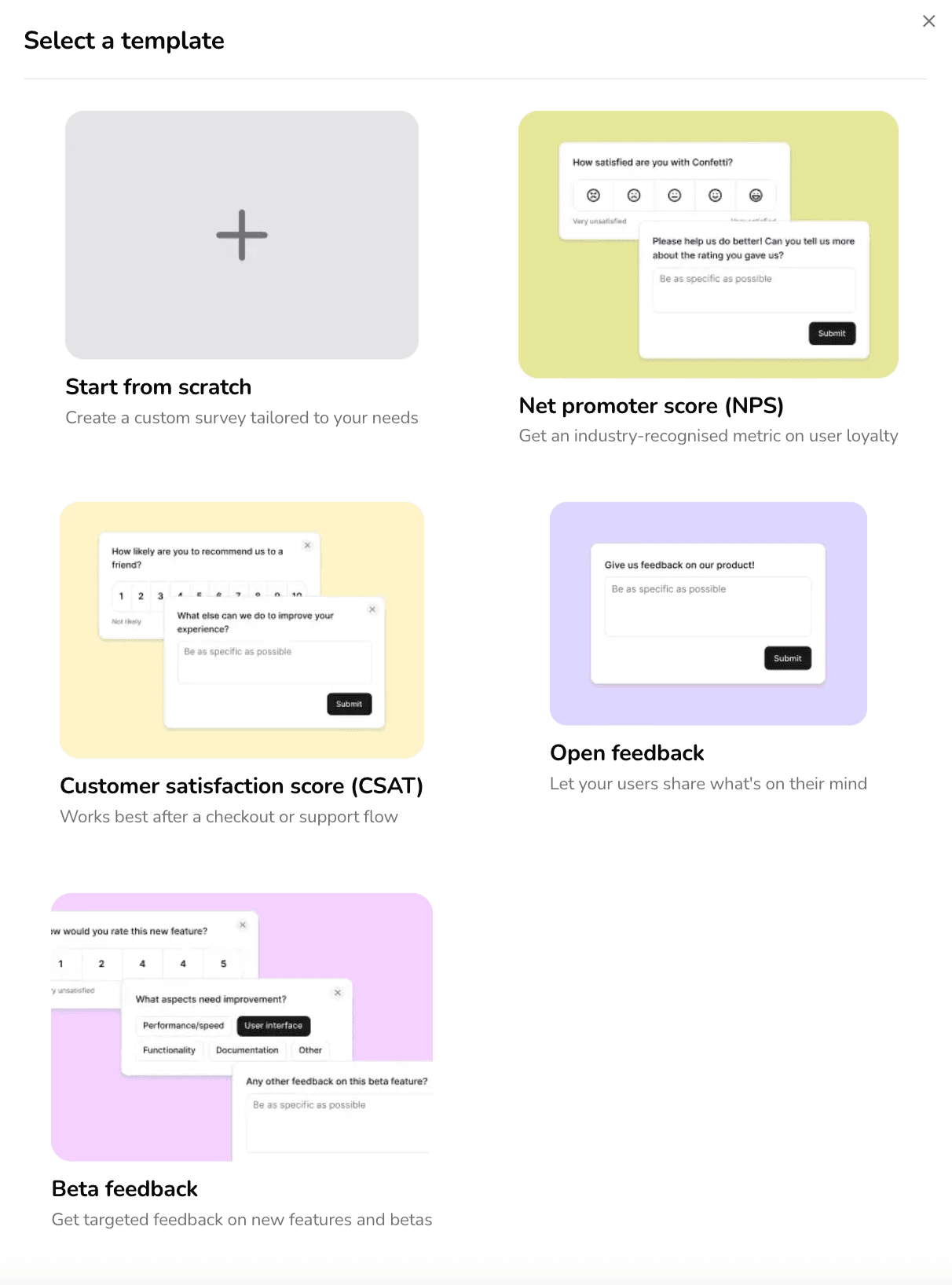
Click New Survey, then select a template or start from scratch.
Step 2: Configure your questions
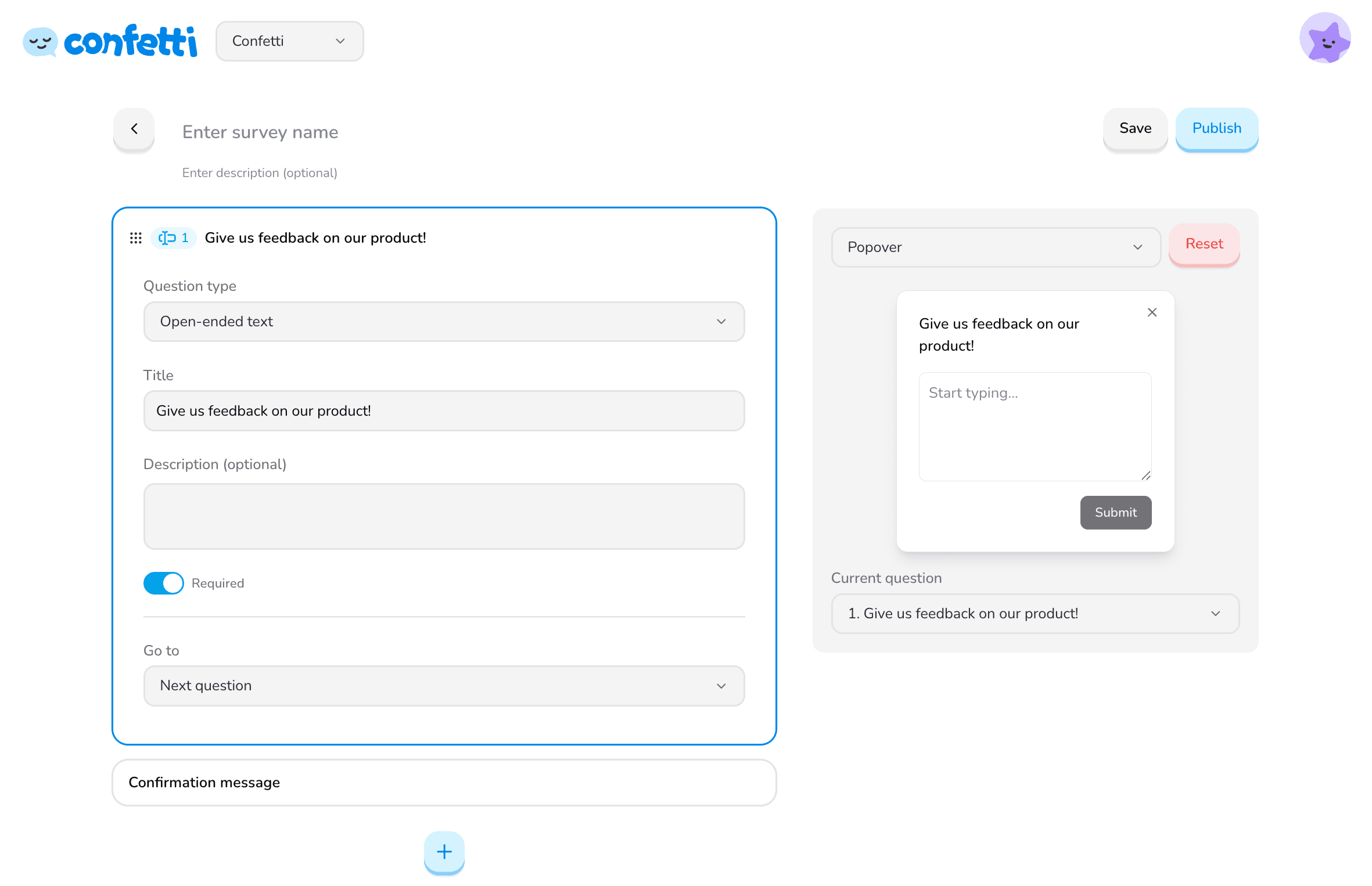
Enter a survey name and begin editing your form fields. For each question you can configure:
- Question type — Open-ended text, Rating, Single choice, or Multiple choice.
- Required — all questions are required by default. Toggle the Required switch to change this.
Routing with "Go to"
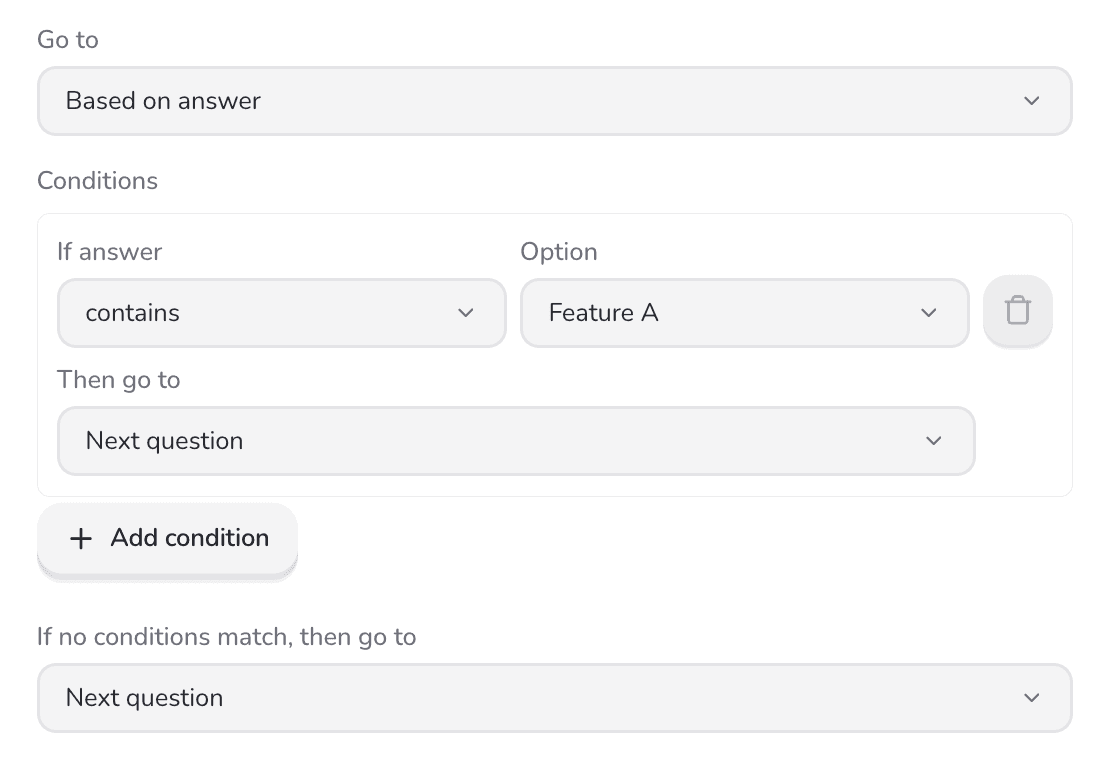
Go to controls what a respondent sees next. A question can:
- Go to the next question — the default. Use this for a linear flow where respondents complete every question.
- Jump to a specific question — let respondents skip ahead. Only questions that appear after the current one can be selected.
- Submit the survey.
- Route based on the answer to the current question.
Routing based on the answer is disabled when the question type is Open-ended text.
Step 3: Set up the widget
When your survey is ready, configure how it appears on your website.
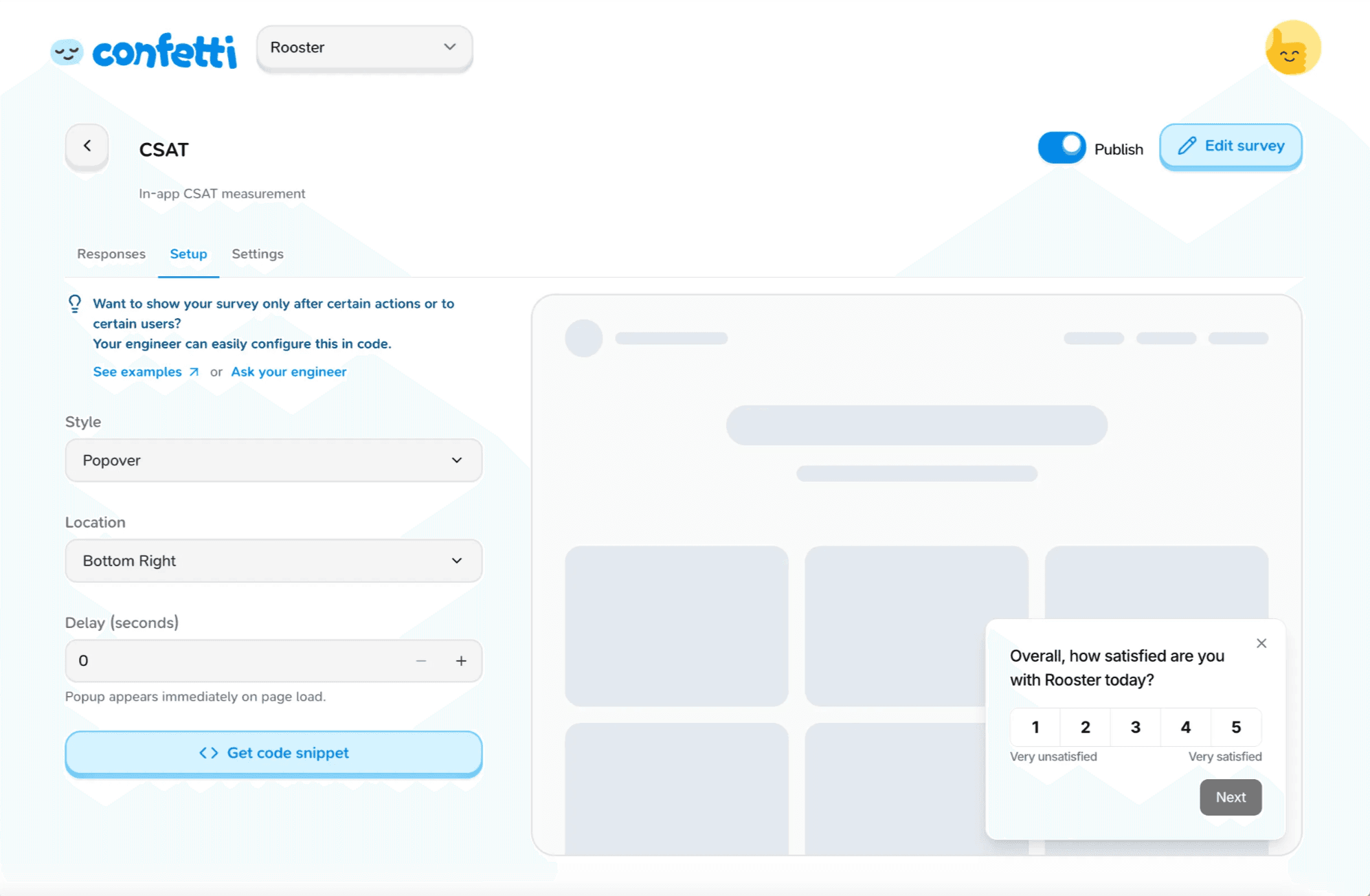
Under Display settings:
- Style lets you edit your popup options, with a live preview on the right.
- Embedded — the survey is placed directly within your page content.
- Popover — the survey appears as a floating pop-up over the page.
- Location — choose where the survey appears on screen (e.g. bottom-right, center).
- Delay (seconds) — the form appears after the specified number of seconds.
A delay is useful when you want users to engage with the page before being prompted.
Was this page helpful?