
Platform surveys
Host a survey on Confetti and share a direct link with respondents.
Platform surveys let respondents fill out your survey on a Confetti-hosted page — no embed code or authorised domains required. Share a link by email, chat, or QR code when you do not need the widget on your own site.
Enable the survey link
- Publish your survey (see Publishing a survey).
- Open the survey and go to the Settings tab.
- Under Platform, turn on Expose URL.
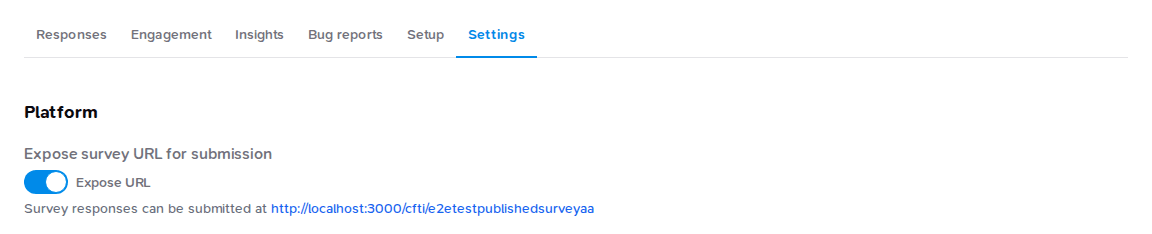
The shareable link appears under the toggle:
https://confetti.gov.sg/cfti/<surveyId>The survey must stay published while the platform link is in use. An unpublished survey will not accept submissions at this URL.
How respondents see your survey
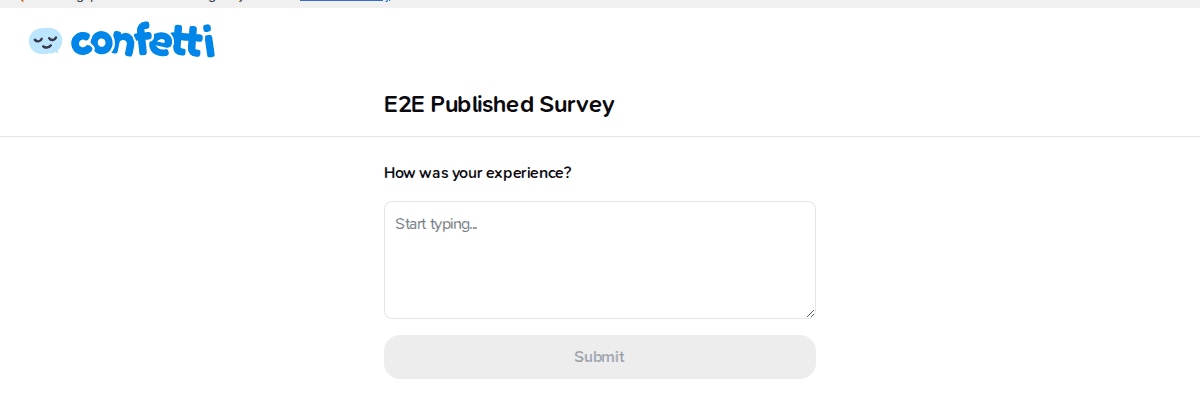
Anyone with the link can open the Confetti-hosted page, answer the questions, and submit.
After submitting, respondents see your confirmation message, a response ID, and an option to submit another response.

Track campaigns with query parameters
Append query parameters to the link to record campaign or channel context on each response. Values are saved in the response metadata.
For example:
https://confetti.gov.sg/cfti/<surveyId>?source=email&campaign=q3stores source and campaign on every response submitted through that link.
- Repeated parameters (
?tag=a&tag=b) are stored as a JSON array (["a","b"]); single values are stored as plain text. - Up to 20 parameters are stored per link; any extra are ignored.
- Each value is capped at 1000 characters.
localeis reserved for translated surveys and is not stored as metadata.
Share a translated link
If you authored translations in the dashboard,
append locale so respondents see that language:
https://confetti.gov.sg/cfti/<surveyId>?locale=zhlocale accepts en (the default), zh, ms, or ta. Untranslated fields
fall back to English. Widget chrome such as Submit and Close still localises
for the given locale even if you left those fields blank.
You can combine locale with campaign parameters:
https://confetti.gov.sg/cfti/<surveyId>?locale=ms&source=emailView responses
Platform submissions appear in the same Responses, Insights, and CSV export views as widget submissions. See Viewing responses.
Turn off the platform link
Turn Expose URL off in Settings when you no longer want the hosted page to accept submissions. Visitors to the old link will see that the survey is not available.
Platform vs widget
| Platform survey | Widget | |
|---|---|---|
| Where it appears | Confetti-hosted page at /cfti/<surveyId> | Embedded on your website |
| Setup | Toggle Expose URL in Settings | Authorise domains and add the code snippet |
| Best for | Email, chat, QR codes, one-off campaigns | Collecting feedback on your own pages |
You can enable both for the same survey if you want.
Was this page helpful?